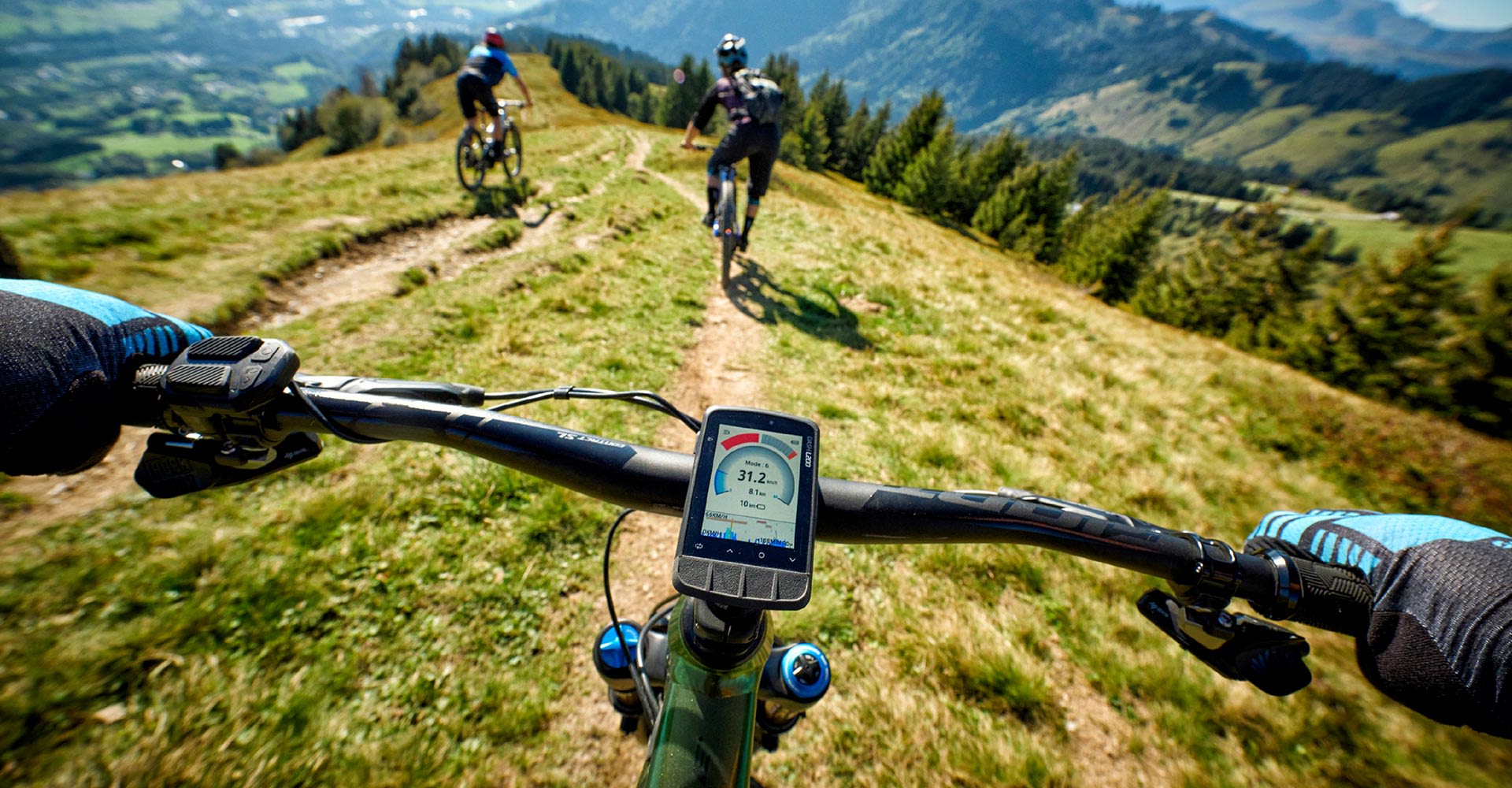
Dash M200 Computer
Giant’s all-new Dash cycling computers unlock the secrets of becoming KOM, QOM or maybe just the local legend. They allow you to connect, customize, train and explore more easily than ever before. Powered by Stages, the Giant Dash L200 and M200 are the practical, precise and powerful way to demystify all your ride data.
Download the Stages Cycling App with a quick QR code scan from the screen. Answer a few questions, and the Giant Dash will configure itself quickly and precisely, specifically for you.

For more information on getting started with your Dash M200 or L200 cycling computer, click here.
Quickly and easily pair Dash with ANT+ or Bluetooth enabled devices such as power meters, smart trainers or smart lights. Access all your data with one easy-to-use, multi-functional panel.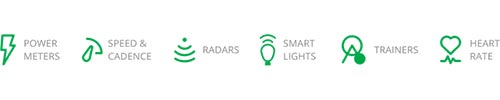
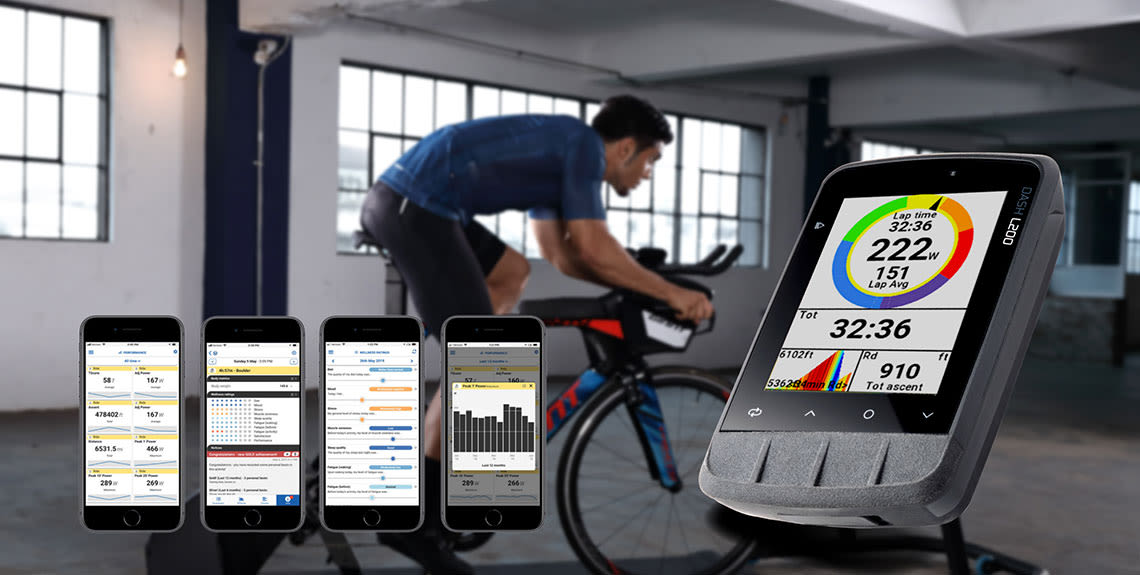
Connect your phone to Dash and never miss an important message or call. When you finish your ride you’ll find all your ride data instantly uploaded via the Stages Link app to your favorite third party apps such as Strava or TrainingPeaks.
Smart Profile takes the mystery out of setting up your computer for your road, gravel, mountain or E-bike. It automatically connects to whichever sensors you have on board and configures the data fields of your Dash for that specific experience. Need to add more information to what’s already there? No problem, just add your own custom panels or pages where you like.
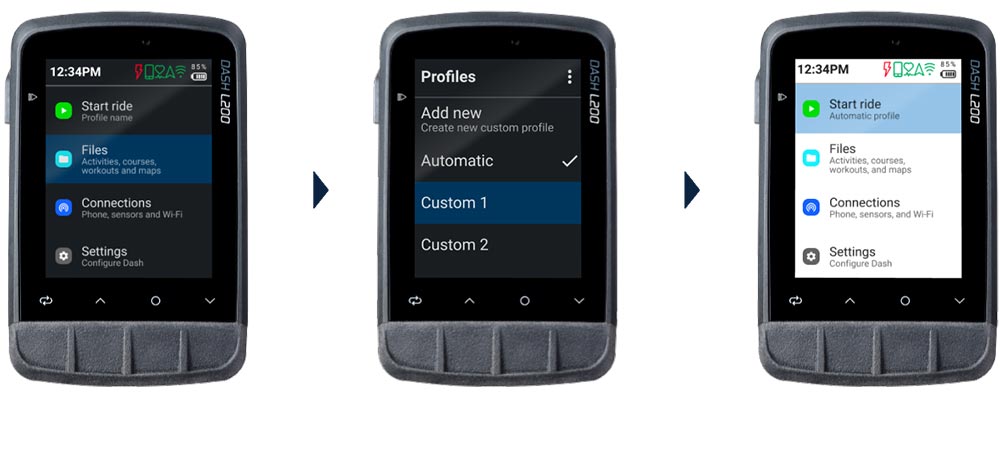
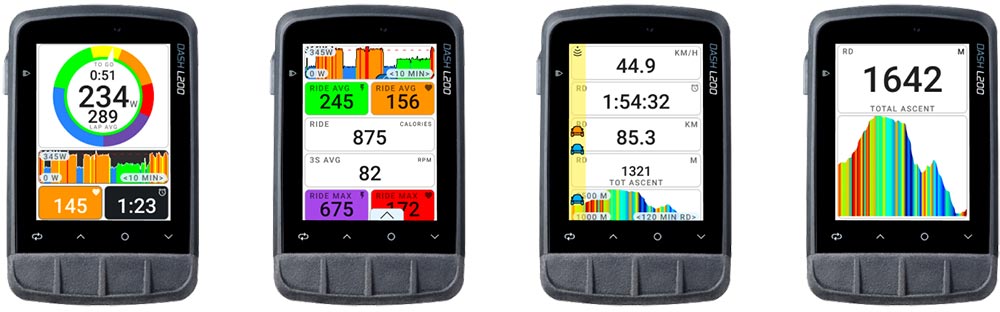
Using the Stages Link app you can quickly and easily tailor every screen and data field to meet your needs.
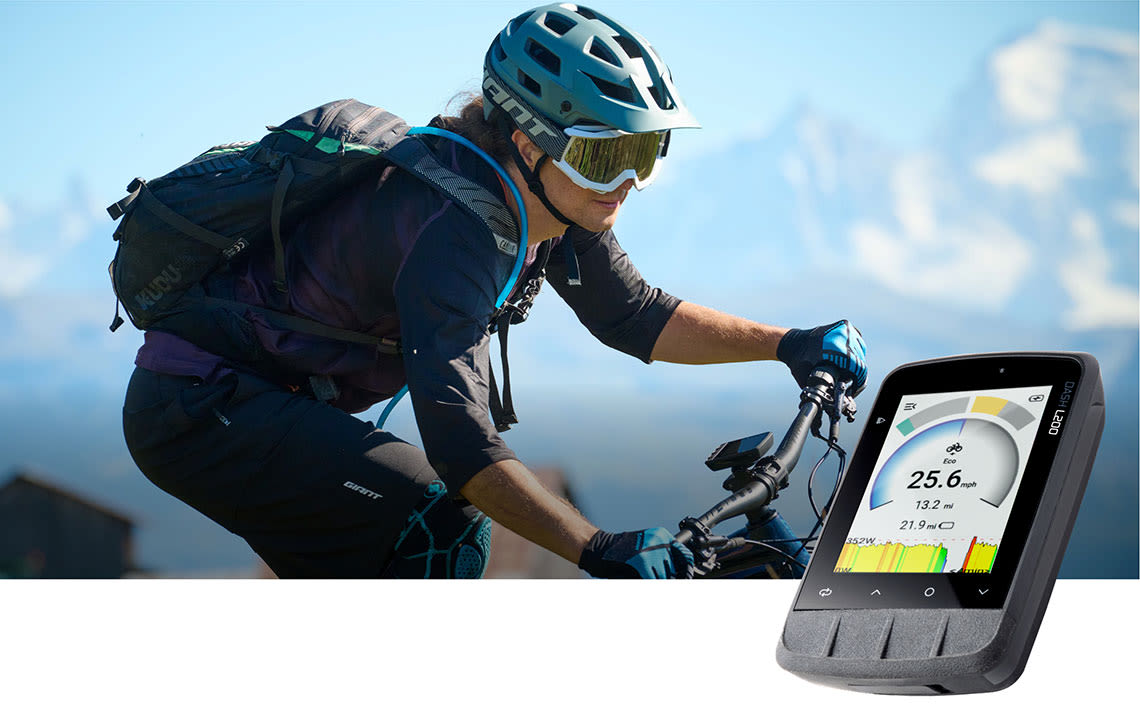
Designed to connect seamlessly to Giant E-bikes via ANT+, Dash can be used as a display to show motor mode, power assist output and battery life.
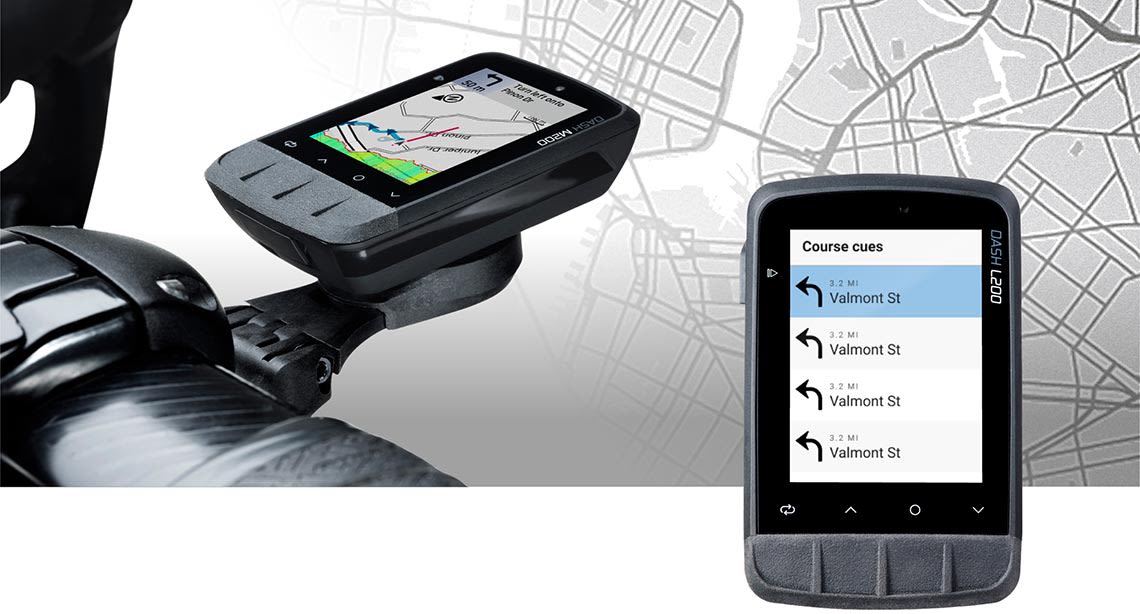
What are the differences between the Dash M200 and the Dash L200?
Do I have to charge my Dash before I use it for the first time?
Yes, You must fully charge your Dash computer before using it for the first time. This wakes up the lithium-ion battery from sleep mode and makes sure your Dash will have optimal run time.
What should I do if my Dash computer battery drains too quickly?
Why does the backlight on my Dash computer turn off suddenly?
When the battery level drops below 20%, Battery Saver Mode will activate to give 2 to 3 more hours of running time.
How do I connect my Dash to 3rd party apps like Strava or TrainingPeaks?
How do I pair my Dash to a sensor such as a power meter or heart rate monitor?
Is my Dash compatible with sensors from other brands?
Yes! Both the Dash M200 and L200 computers are fully compatible with ANT+ or Bluetooth compatible devices from other brands such as lights, smart trainers, radars, power meters, E-bikes and more!
What mount can I use with my Dash M200 and the Dash L200?
What if the answer I’m looking for isn’t here?
Press the side button for two seconds
How do I perform a hard shut-down of my Dash?
In the unlikely event of an unexpected issue or crash, press the side button for seven seconds. This will erase data from the current ride and reboot the unit. This action is not recommended and if you are experiencing frequent issues, please contact Stages technical support.
How do I connect with the Stages app?
How do I connect to Wi-Fi using the Stages app?
How do I download maps using the Stages app?

If you have any further questions about your Dash computer or App, click here for more information.